
AI gets data wrong. Sphinx makes it right.
AI gets data wrong. Sphinx makes it right.
Sphinx makes your data and AI reliable.
Backed by innovators

Sphinx enforces data accuracy across AI tools
Sphinx enforces data accuracy across AI tools
Sphinx enforces data accuracy across AI tools
Sphinx AI continuously governs and corrects your data and AI outputs. It learns how your business defines, measures, and uses data, and makes sure every AI output is accurate.
Sphinx AI continuously governs and corrects your data and AI outputs. It learns how your business defines, measures, and uses data, and makes sure every AI output is accurate.
THE PROBLEM
Teams don’t trust their AI
Teams don’t trust their AI
Teams don’t
trust their AI
The Trust Problem
The Trust Problem
You spend as much time validating outputs as you do using them.
You spend as much time validating outputs as you do using them.
You can't always tell if the AI understood the question or just answered it.
You can't always tell if the AI understood the question or just answered it.
Confidence in your data erodes every time something doesn't match.
Confidence in your data erodes every time something doesn't match.
The Trust Problem
You spend as much time validating outputs as you do using them.
You can't always tell if the AI understood the question or just answered it.
Confidence in your data erodes every time something doesn't match.
The Accountability Problem
When an output is wrong, you can't trace why.
There's no audit trail. No version history, no owner, and no way to learn from what went wrong.
You're responsible for decisions you can't fully defend.
The Knowledge Problem
Metric definitions exist in six places and mean slightly different things in each one.
Institutional knowledge lives in the heads of experts.
New tools inherit the old confusion.
The Consistency Problem
The Consistency Problem
Multiple dashboards. None of them agree.
Multiple dashboards. None of them agree.
AI runs on your data without knowing what it means.
AI runs on your data without knowing what it means.
Outputs look right until something goes wrong.
Outputs look right until something goes wrong.
The Consistency Problem
Multiple dashboards. None of them agree.
AI runs on your data without knowing what it means.
Outputs look right until something goes wrong.
how it works
Sphinx sits between your AI and your data
Sphinx sits between your AI and your data
01
Connect your data stack.
Sphinx connects with your existing databases, warehouses, and tools.
01
Connect your data stack.
Sphinx connects with your existing databases, warehouses, and tools.
01
Connect your data stack.
Sphinx connects with your existing databases, warehouses, and tools.
02
Let Sphinx learn.
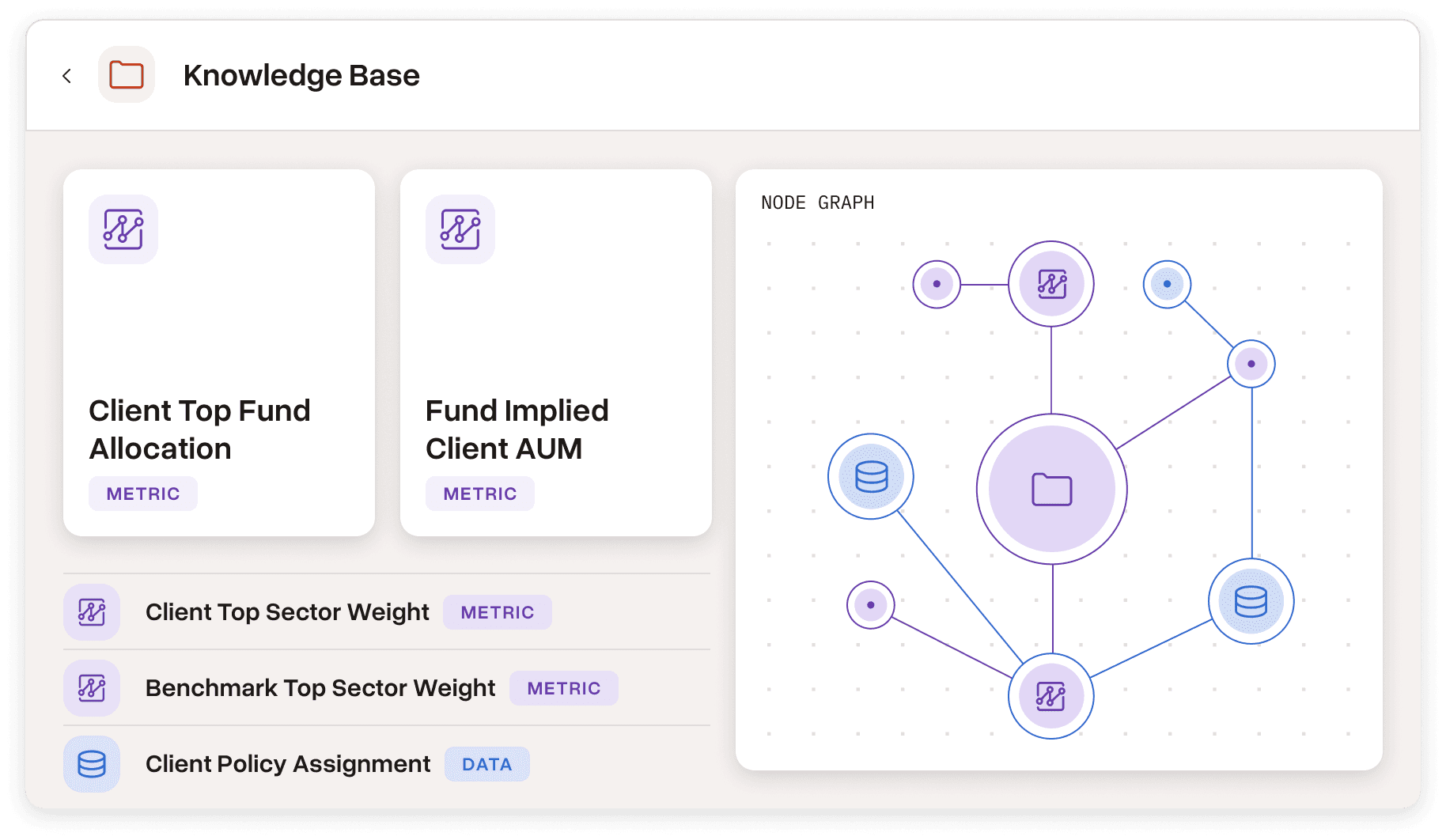
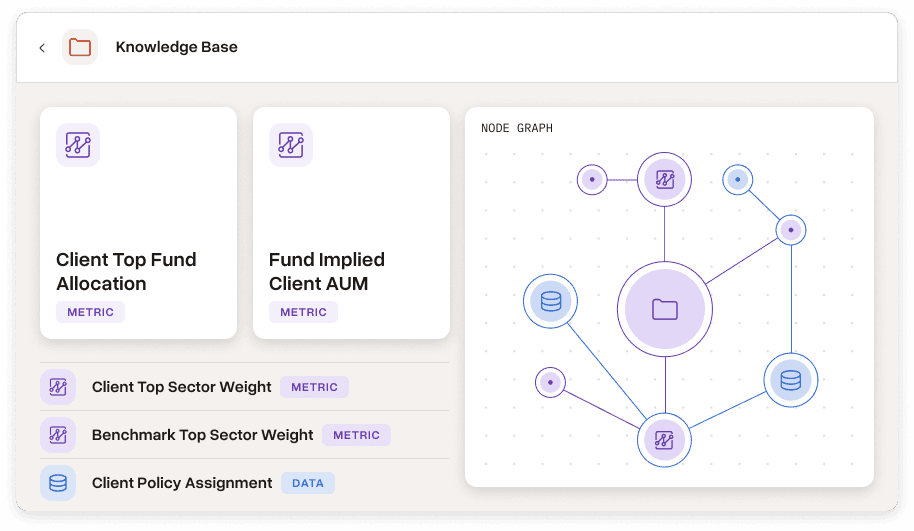
Sphinx captures your institutional knowledge, schemas, metrics, and definitions.
02
Let Sphinx learn.
Sphinx captures your institutional knowledge, schemas, metrics, and definitions.
02
Let Sphinx learn.
Sphinx captures your institutional knowledge, schemas, metrics, and definitions.
03
Validate every AI query.
When AI queries your data, Sphinx checks it before outputs go anywhere.
03
Validate every AI query.
When AI queries your data, Sphinx checks it before outputs go anywhere.
03
Validate every AI query.
When AI queries your data, Sphinx checks it before outputs go anywhere.
04
Catch errors.
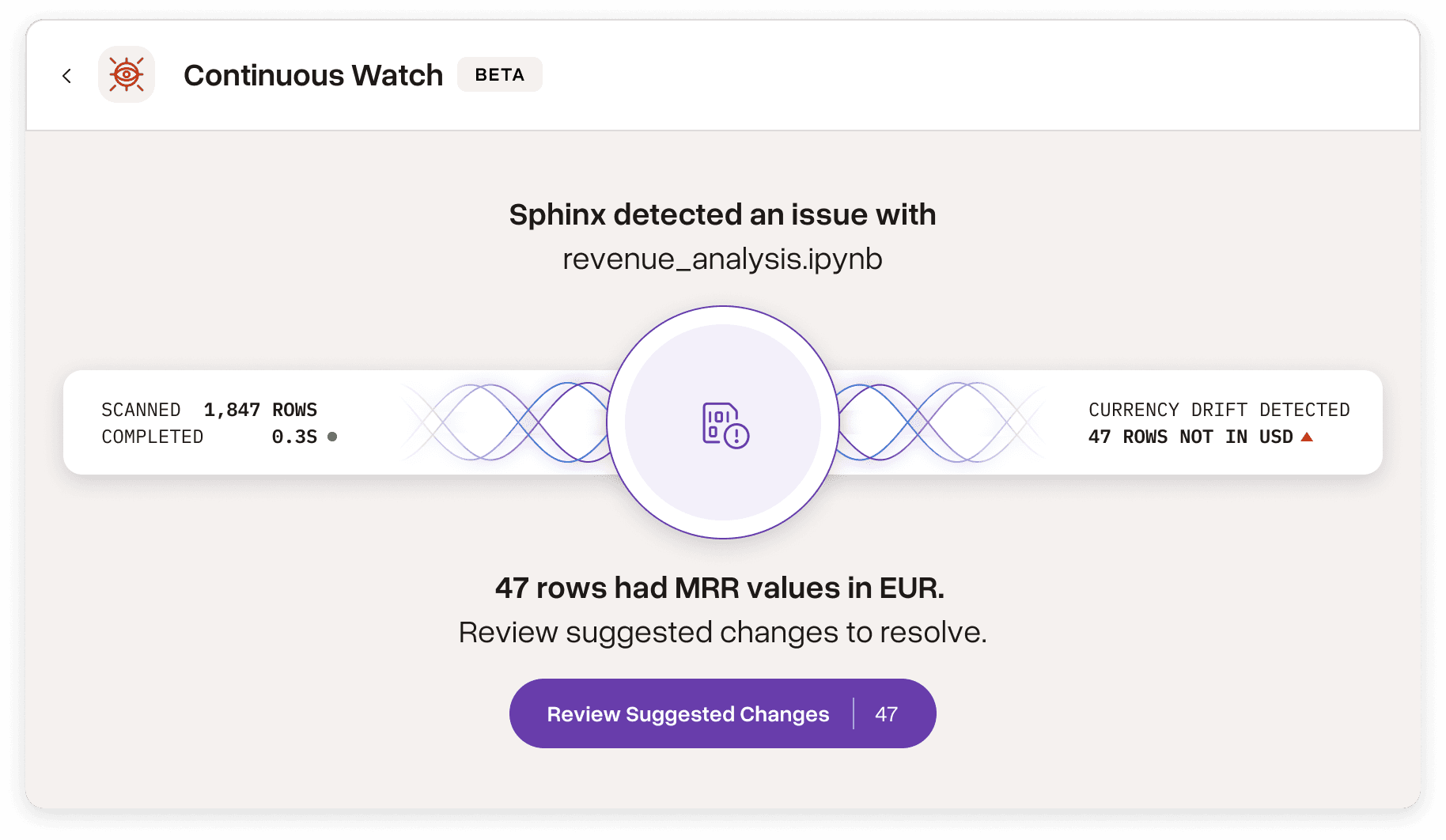
Sphinx catches drift, inconsistencies, and hallucinations, then fixes them continuously.
04
Catch errors.
Sphinx catches drift, inconsistencies, and hallucinations, then fixes them continuously.
04
Catch errors.
Sphinx catches drift, inconsistencies, and hallucinations, then fixes them continuously.
05
Make results traceable.
Every output traces back to source data.
05
Make results traceable.
Every output traces back to source data.
05
Make results traceable.
Every output traces back to source data.
Teams move faster when they trust their AI
Teams move faster when they trust their AI
Teams move faster when
they trust their AI
"
Sphinx cut our analysis time from days to minutes. We use it constantly now, because it catches issues early and keeps us moving. Our two-person team started operating like a team of 20. Once we could focus on the work instead of debugging, we started delivering so much more value.
Chief Data Officer
Consumer Packaged Goods Firm
"
“Sphinx AI has helped our data scientists uncover patterns in customer behavior in minutes instead of hours or days.”
Chief Executive Officer
DTC Retail Brand
"
Sphinx makes AI an intellectual sparring partner. We can challenge assumptions, push back on its conclusions, and pressure-test ideas, helping us arrive at more robust decisions. It stands up to the level of debate and scrutiny that we'd expect of a colleague.
Quantitative Researcher
Hedge Fund
"
Our customers expect data-driven improvements that enhance their day-to-day experience. Partnering with Sphinx gives us a powerful data science solution agent to better understand behavior, optimize outcomes, and turn insights into action ten times faster — so we can continuously improve the value we provide with our platform.
Chief AI Advisor
Leading Digital Assets Platform
"
Sphinx cut our analysis time from days to minutes. We use it constantly now, because it catches issues early and keeps us moving. Our two-person team started operating like a team of 20. Once we could focus on the work instead of debugging, we started delivering so much more value.
Chief Data Officer
Consumer Packaged Goods Firm
"
“Sphinx AI has helped our data scientists uncover patterns in customer behavior in minutes instead of hours or days.”
Chief Executive Officer
DTC Retail Brand
"
Sphinx makes AI an intellectual sparring partner. We can challenge assumptions, push back on its conclusions, and pressure-test ideas, helping us arrive at more robust decisions. It stands up to the level of debate and scrutiny that we'd expect of a colleague.
Quantitative Researcher
Hedge Fund
"
Our customers expect data-driven improvements that enhance their day-to-day experience. Partnering with Sphinx gives us a powerful data science solution agent to better understand behavior, optimize outcomes, and turn insights into action ten times faster — so we can continuously improve the value we provide with our platform.
Chief AI Advisor
Leading Digital Assets Platform
For teams where data quality is everyone's problem and no one's job
For teams where data quality is everyone's problem and no one's job
Data & analytics teams
"We're doing the work the AI was supposed to do."

Spend your team's time on insights, not cleanup. Sphinx handles the maintenance layer so you can focus on the work that actually matters.
Automate pipeline validation so anomalies are caught before they compound
Replace manual QA loops with continuous self-correction that runs without constant intervention
Maintain a living data dictionary that automatically updates as your environment evolve
Data owners & platform leads
"I need confidence in what's going out, and control over how it gets used."

Get the reliability of a governed dashboard with the flexibility of AI. Sphinx enforces the rules your organization sets.
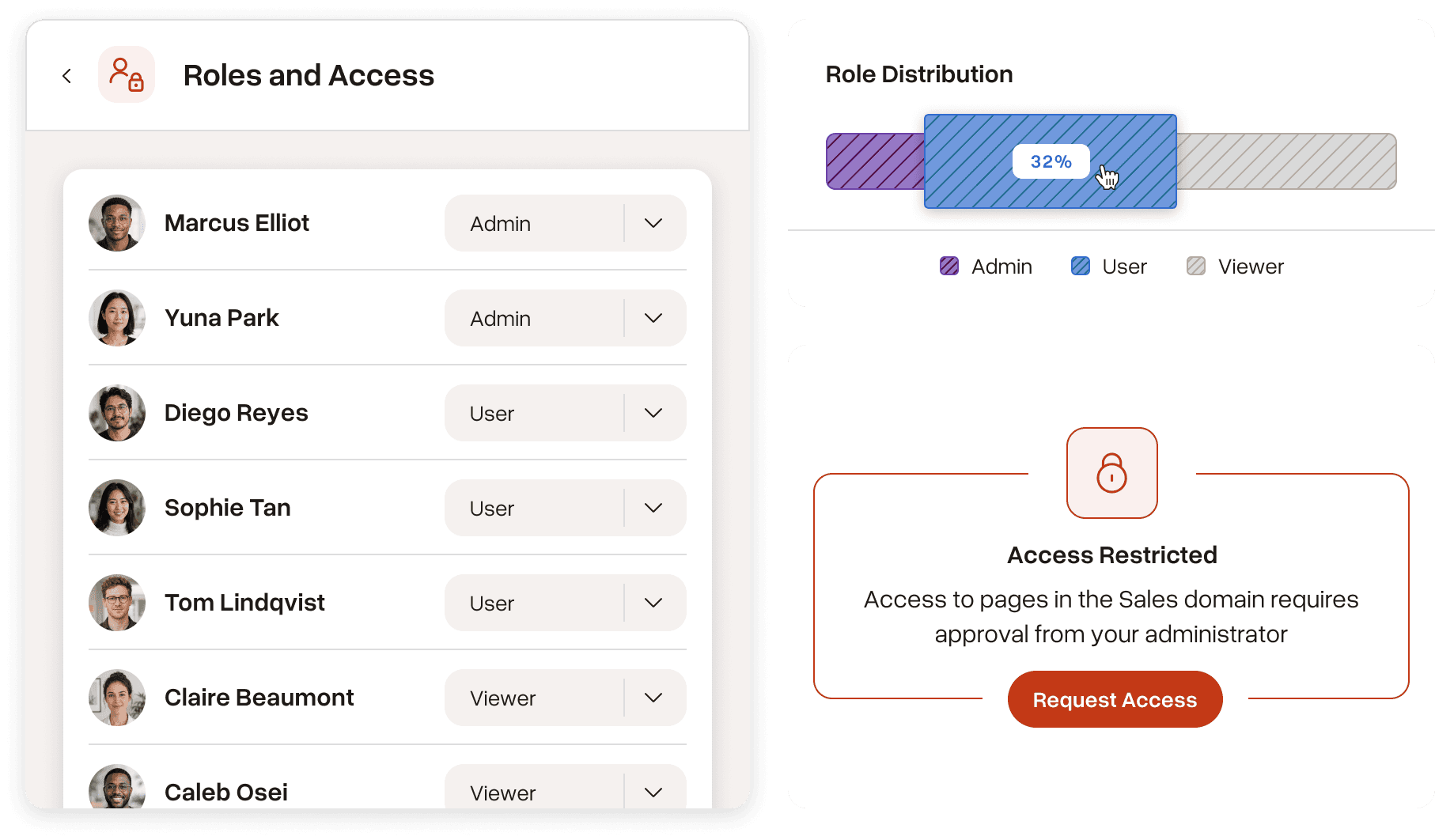
Set role- and domain-based access controls that align with your org structure: Finance, HR, Ops, etc
Enforce consistent metric definitions and business logic across every team and tool
Configure exactly how much autonomy Sphinx has — and where human approval is required
Get the reliability of a governed dashboard with the flexibility of AI. Sphinx enforces the rules your organization sets.
Set role- and domain-based access controls that align with your org structure: Finance, HR, Ops, etc
Enforce consistent metric definitions and business logic across every team and tool
Configure exactly how much autonomy Sphinx has — and where human approval is required
Leadership & decision-makers
"We have AI everywhere and confidence nowhere."

By the time a number reaches you, Sphinx has already verified it. Your team moves faster. Your decisions stand up to scrutiny.
Every number your team presents has already been validated against source data
Full lineage and reproducible reasoning on every AI-generated output
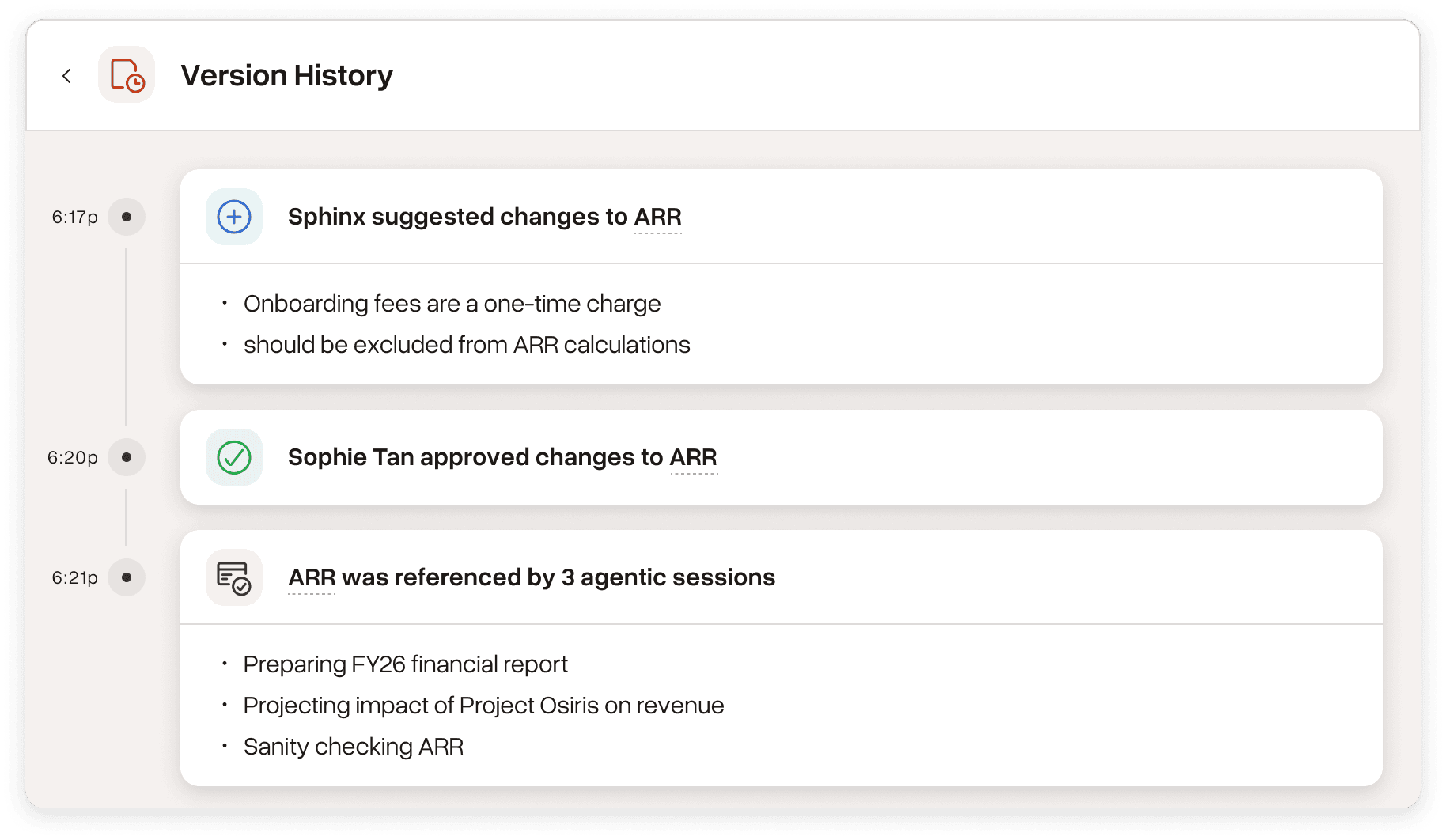
Satisfy audit requirements with traceable, versioned, explainable decisions
By the time a number reaches you, Sphinx has already verified it. Your team moves faster. Your decisions stand up to scrutiny.
Numbers your AI produces are consistently derived using the right methodologies
Full lineage and reproducible reasoning on every AI-generated output
Satisfy audit requirements with traceable, versioned, explainable decisions
Built for real data environments
Built for real data environments
Sphinx sits on top of your existing stack, connecting directly to the databases, warehouses, and data tools you already have.
Sphinx sits on top of your existing stack, connecting directly to the databases, warehouses, and data tools you already have.

Custom Integration
Flexible setup
Custom Integration
Flexible setup
Learn More

SQL Databases
Structured data
SQL Databases
Structured data
Learn More

Google Cloud
BigQuery & storage
Google Cloud
BigQuery & storage
Learn More

Amazon Web Services
Storage & compute
Amazon Web Services
Storage & compute
Learn More

Snowflake
Cloud data platform
Snowflake
Cloud data platform
Learn More

Databricks
Unified analytics & ML
Databricks
Unified analytics & ML
Learn More
BUILT FOR ENTERPRISE
Designed for secure, reliable AI operations
Designed for secure, reliable AI operations
Designed for secure, reliable AI operations
Zero data retention
Model providers never retain or train on your prompts, data, or outputs. Full ownership stays with your organization.
Zero data retention
Model providers never retain or train on your prompts, data, or outputs. Full ownership stays with your organization.
Zero data retention
Model providers never retain or train on your prompts, data, or outputs. Full ownership stays with your organization.
SOC 2 type 2 compliant
RBAC, SSO, encryption in transit and at rest. Full audit logs, access tracking, and user management.
SOC 2 type 2 compliant
RBAC, SSO, encryption in transit and at rest. Full audit logs, access tracking, and user management.
SOC 2 type 2 compliant
RBAC, SSO, encryption in transit and at rest. Full audit logs, access tracking, and user management.
Full output lineage
Every output is fully traceable: data used, logic applied, reasoning behind every conclusion. No black box.
Full output lineage
Every output is fully traceable: data used, logic applied, reasoning behind every conclusion. No black box.
Full output lineage
Every output is fully traceable: data used, logic applied, reasoning behind every conclusion. No black box.
Configurable autonomy
Sphinx does the work. You decide what ships. Define where it runs independently and where judgment makes the final call.
Configurable autonomy
Sphinx does the work. You decide what ships. Define where it runs independently and where judgment makes the final call.
Configurable autonomy
Sphinx does the work. You decide what ships. Define where it runs independently and where judgment makes the final call.




See Sphinx in action
See Sphinx in action
See Sphinx in action
Discover how Sphinx validates and maintains data accuracy across your entire organization.
Discover how Sphinx validates and maintains data accuracy across your entire organization.